Table of Contents
- How the program works
- Video Tutorial
- FAQ for TC Speed Connect
- How do I start using TC Speed Connect?
- What are the login credentials for TC Speed Connect?
- How do I connect TC Speed Connect to a radar speed sign?
- What should I do if I can't connect to a sign?
- How do I configure the radar speed sign once connected?
- How can I ensure the sign operates correctly after changes?
TC Speed Connect User Guide (LEGACY)
Legacy TC Speed Connect software: Configure radar signs, manage profiles, connect via Bluetooth, analyze performance logs

Table of Contents
- How the program works
- Video Tutorial
- FAQ for TC Speed Connect
- How do I start using TC Speed Connect?
- What are the login credentials for TC Speed Connect?
- How do I connect TC Speed Connect to a radar speed sign?
- What should I do if I can't connect to a sign?
- How do I configure the radar speed sign once connected?
- How can I ensure the sign operates correctly after changes?
- How the program works
- Video Tutorial
- FAQ for TC Speed Connect
- How do I start using TC Speed Connect?
- What are the login credentials for TC Speed Connect?
- How do I connect TC Speed Connect to a radar speed sign?
- What should I do if I can't connect to a sign?
- How do I configure the radar speed sign once connected?
- How can I ensure the sign operates correctly after changes?

There is a -M at the end of the model number for MUTCD compliant rings
How the program works
There are four pages:
- Profile
- Connected Sign
- Data Viewer
- About
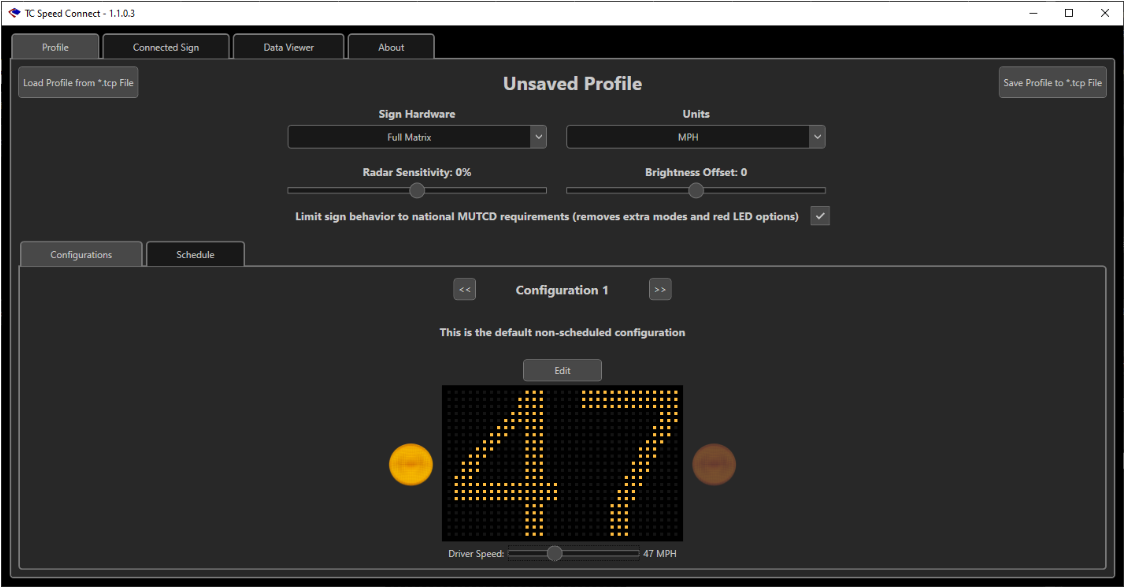
Used for:
- creating sign profiles (which are a combination of configurations, day-plans and schedules)
- saving out profiles as .tcp files.
- loading in .tcp files.
The configurations are now set up via a wizard which opens when you hit the Edit button on a given configuration.
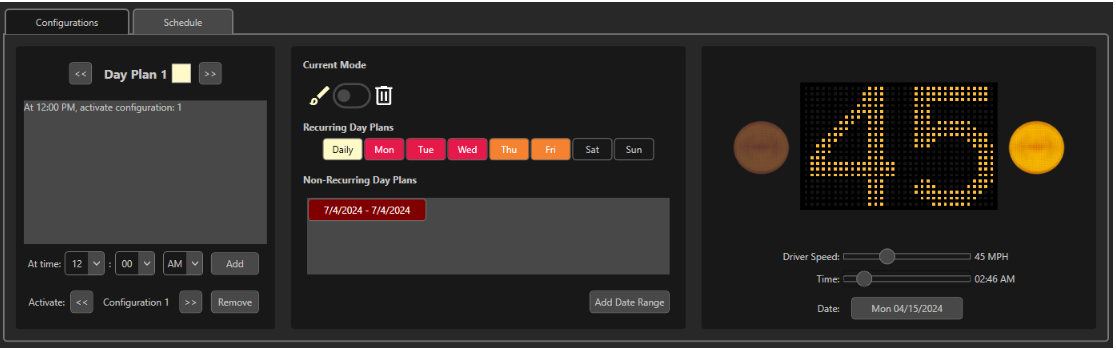
Schedules are set up with the assignment of day plans to a hierarchy mirroring the logic executed on the sign. A preview is included so you can test what you’ve set.
Connected Sign Page
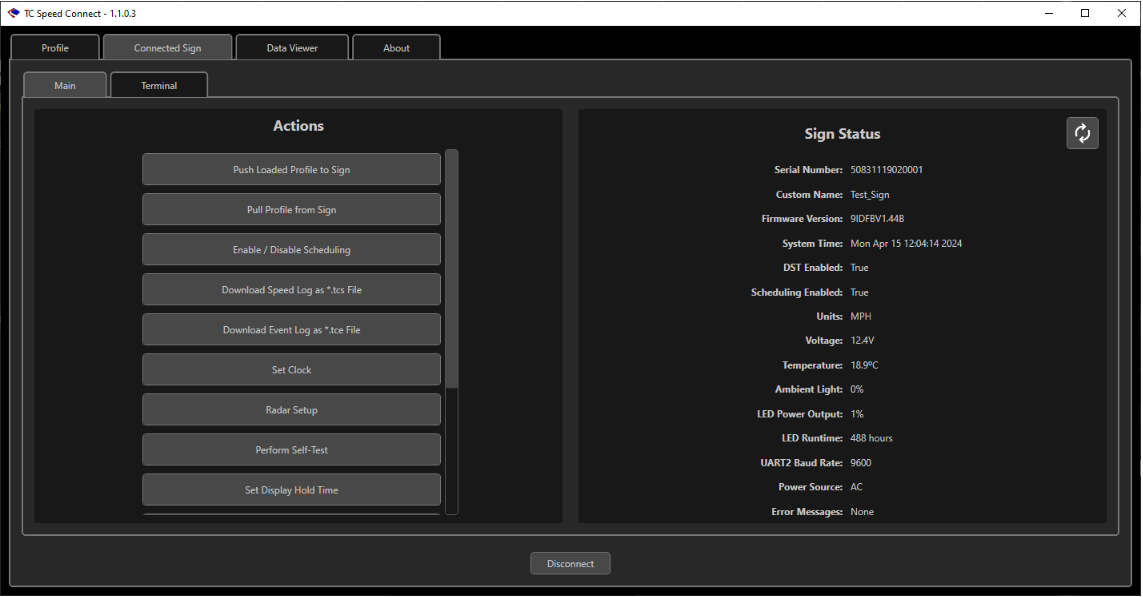
Used for:
- Scanning for and logging into signs via Bluetooth or direct serial connection.
- Uploading and downloading sign profiles.
- Downloading speed logs as .tcs files.
- Downloading event logs as .tce files.
- Checking sign status and running tests.
- Setting per-sign options.
The disconnect button is always present at the bottom of the screen when connected.
If an action is greyed out on the left, it means you don’t have current user rights on the sign to perform that action.
To cut down on communication traffic between the sign and the device, there is now a refresh button for getting the most recent sign status (although some of the actions will prompt a refresh by themselves).
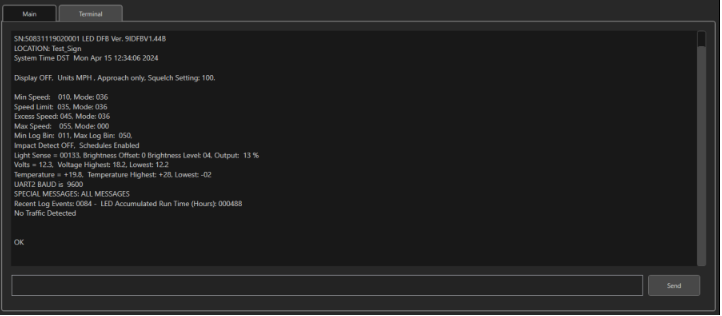
A Terminal tab is included for direct AT command communication with the sign.
Data Viewer Page
This page consists of two tabs:
Event Logs
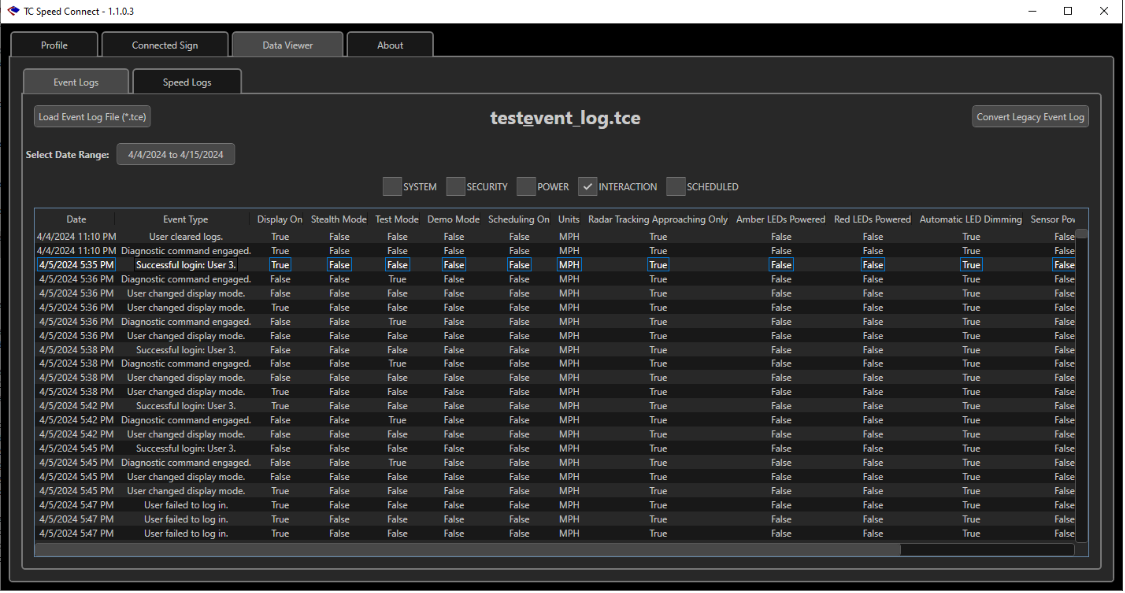
• Used for examining .tce event log files downloaded from signs via the program.
• These are loaded via the ‘Load Event Log File’ button in the top left.
• Legacy event logs (usually saved as *.csv) can be converted to the .tce format via the ‘Convert Legacy Event Log’ button in the top right.
• Once loaded, logs can be filtered by date and by category using the checkboxes across the middle of the page.
Speed Logs
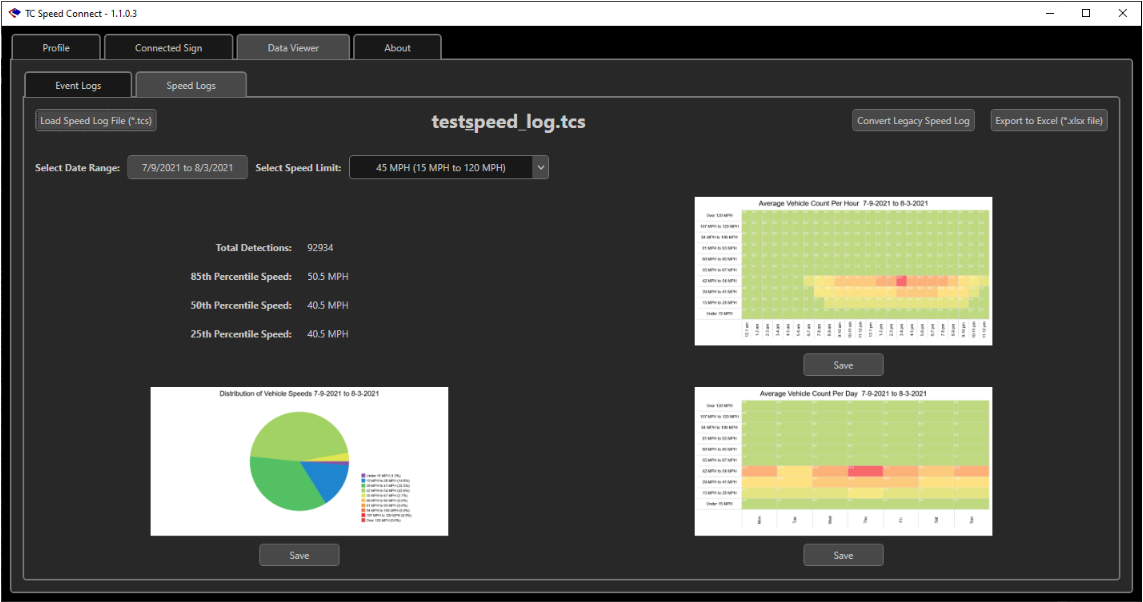
• Used for examining .tcs speed logs downloaded from signs via the program.
• These are loaded via the ‘Load Speed Log File’ button in the top left.
• Legacy speed logs (usually saved as *.csv) can be converted to the .tcs format via the ‘Convert Legacy Speed Log’ button in the top right.
• The data can be exported to an Excel file using the ‘Export to Excel’ button also in the top right.
• Once loaded, logs can be filtered by date and by posted speed limit using the controls at the top.
Three charts are shown. Each of them has a ‘Save’ button that exports the chart to a high res .png file.
- Distribution of vehicle speeds: percentage of vehicles travelling in each speed range)
- Average vehicle count per hour: shows busiest hours of the day plus speeds via the heatmap.
- Average vehicle count per weekday: shows busiest days of the week plus speeds via the heatmap.
About Page
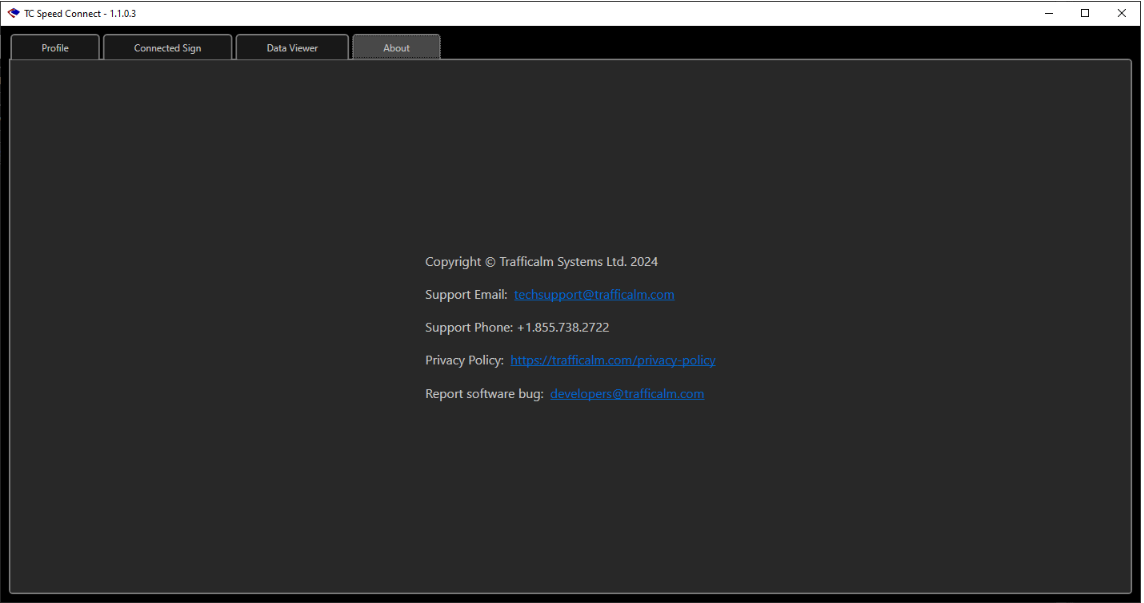
- Shows copyright, privacy policy and contact information
Video Tutorial
The embedded video tutorial provides a visual and interactive approach to understanding TC Speed Connect's interface and features. It covers essential operations such as profile creation, sign connection, and data handling, alongside practical demonstrations of setting up configurations and schedules as described in the transcript.
- 0:00 - Introduction to TC Speed Connect 1.1.0.8
- 0:33 - Sign Hardware Options
- 0:54 - Adjusting Radar Sensitivity
- 1:35 - Configuring Speed Limits and Feedback Options
- 2:59 - External Beacons Configuration
- 3:56 - Beacon Operation Modes
- 5:15 - Minimum Speed for Display Feedback
- 6:12 - Excess Speed and Compliance Settings
- 7:31 - Maximum Speed Display Settings
- 8:18 - School Zone Configuration Scenario
- 10:04 - Scheduling Configurations for School Hours
- 11:19 - Implementing and Scheduling Configurations
- 15:29 - Connecting to the Sign
- 17:36 - Setting System Time and Uploading Profiles
- 19:36 - Diagnostic Tools and Baseline Settings
- 23:52 - Power Source Options and Impact on Functionality
- 25:10 - Factory Reset Options
FAQ for TC Speed Connect
How do I start using TC Speed Connect?
This Program is now legacy and unsupported, please update to the latest software
What are the login credentials for TC Speed Connect?
You will receive admin level access and a temporary password via email upon the initial setup. If you haven't received this or if you are unsure of your credentials, please contact customer support for assistance.
How do I connect TC Speed Connect to a radar speed sign?
You can connect to the radar speed sign either via Bluetooth or using a hard-wired RS232 serial connection. On the 'Connected Sign' page within the software, it will display a list of signs within Bluetooth range or connected via serial port. Select your sign and use the provided credentials to log in.
What should I do if I can't connect to a sign?
Ensure that your device's Bluetooth is enabled and the sign is within range, or check your serial connection if applicable. If problems persist, restart both your device and the sign, and try connecting again. Ensure your software is up to date, as updates may enhance connectivity and functionality.
How do I configure the radar speed sign once connected?
Configuration settings can be adjusted offline. Navigate to the configuration settings to adjust speed limits, sensitivity, and other operational parameters. Use the profile setup to create and manage sign profiles including configurations, day-plans, and schedules. Once configured, connect to the sign and upload the profile using the 'Upload to Sign' function.
How can I ensure the sign operates correctly after changes?
After making any changes, save your configuration and use the 'Upload to Sign' function to update the sign. You can run diagnostics from the 'Connected Sign' page to verify that all settings are correctly applied and the sign is functioning as expected.
Was this helpful?
TraffiCalm Speed Connect (Web) Scheduling
Percentile Walkthrough Using Actual Speed Log Data (85th percentile)