Table of Contents
How to Remove a Schedule – Value Series DFB
Remove active schedules from Value 12" DFB. Unlock sign with passcode, enter Standby Mode, press POWER twice to delete schedule and return to normal operation.

Updated
by Dylan Solberg
Table of Contents

MUTCD Sign Rings: If your controller is running firmware 401N or >, adjust brightness from 100% to 60%. Failure to do so will result in higher power draw and solar systems may fail.
Is my ring MUTCD?
There is a -M at the end of the model number for MUTCD compliant rings
There is a -M at the end of the model number for MUTCD compliant rings
Overview
This procedure explains how to remove an active schedule from a Value Series DFB. Removing the schedule returns the sign to normal operation.
Prerequisites
- Remote control
- Passcode (default: 00000 unless changed)
Step 1: Unlock the Sign
- Press SIGN
- Press EXIT
- Press OK
- Enter the 5-digit passcode
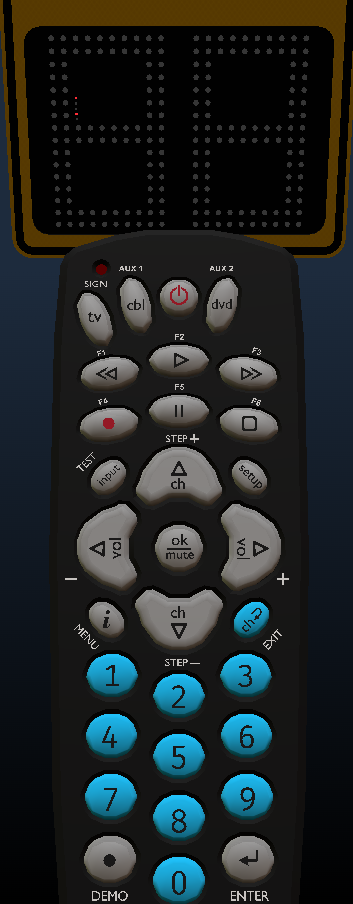
There are 5 Red LEDs located on the left panel. These will indicate the current programming state. During passcode entry, the 5th LED down from the top will blink, and each number entered will light up the corresponding LED. Example, 1st number will light up the first LED. 2nd number will light up the second Led, Etc.
Step 2: Enter Standby Mode
Press the POWER button once
Result:
The sign enters Standby Mode, where scheduling is configured.
No LEDs will be lit when entering this menu
Step 3: Remove the Schedule
Press the POWER button again
Result:
- Standby Mode is exited
- Any existing schedule is deleted
After pressing the power button, the 5th LED will begin flashing again. This will indicate a successful schedule removal.
Result
The sign is now:
- Unlocked
- Schedule removed
- Operating under normal conditions
Post-Setup Verification
After removing the schedule, verify system settings:
- Press MENU
- Confirm:
- Minimum Speed Setting
- Other operational parameters as required
Quick Reference
- Unlock sign
- Enter passcode
- Press POWER → POWER
- Schedule cleared
Notes
- No confirmation prompt is required when removing the schedule
- Pressing the POWER button a second time immediately clears any programmed schedule
- Ensure speed settings are reviewed after removing a schedule
Was this helpful?
Value Series Sign Simulator